Explore the AI Generate inspector
The AI Generate inspector provides a streamlined workspace for creating and transforming vector graphics and bitmaps with AI. It includes three workflow-specific tabs — Create vector graphic, Create image, and Remix image. While some controls are shared across workflows, others are tailored to specific tasks.
Create vector graphic is designed for generating scalable, editable vector graphics from text prompts. You can optionally add reference content to guide the result and choose from models tailored for vector artwork.
Create image is designed for generating bitmaps from text prompts. You can optionally add reference content to influence the result and choose from models suited for generating raster images.
Remix image is designed for modifying existing content. Use a selected vector graphic or bitmap as the source, add a prompt to describe the changes you want, then choose from models optimized for transforming or enhancing images. The generated result is a bitmap.
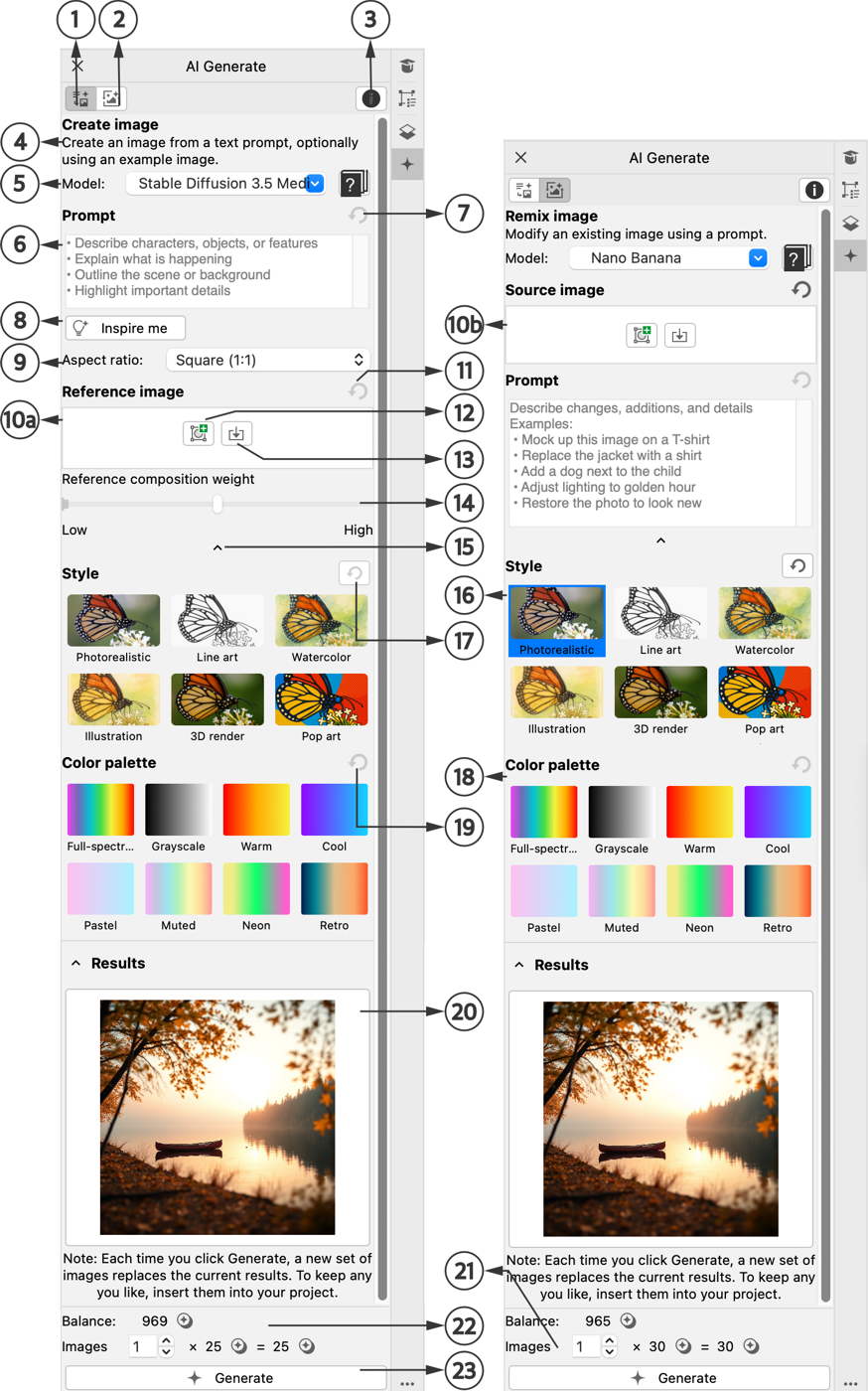
The image below illustrates the main components of the AI Generate inspector.
Create vector graphic tab (left); Create image tab (middle); Remix image tab (right)
|
|
|
1 Create vector graphic tab |
Create a vector graphic from a text prompt, optionally using reference content. |
|
|
Create a bitmap from a text prompt, optionally using reference content. |
|
|
Modify an existing vector graphic or bitmap using a text prompt, maintaining the original graphic elements. |
|
|
Learn about AI credits, legal notices, and help resources. |
5 Tab label and description |
Displays the tab label and workflow description |
|
|
Choose an AI engine — each interprets your prompt differently, affecting look, realism, and detail. |
|
|
Type a text prompt to guide the generated result. Adding detail helps the AI produce results that more closely match your intent. |
|
|
|
|
|
Check out examples of effective prompts. |
|
|
Choose an aspect ratio for the generated result. • Adding reference content disables the Aspect ratio option, and the output uses the dimensions of the reference. |
11a Reference image ( Create Image tab) |
Select content in the document or import a file to guide the composition of the vector graphic or bitmap. • This option is available only for models that support using reference content. |
11b Source image ( Create vector graphic and Remix image tabs) |
Select content in the document or import the file you want to modify. |
12 Clear reference content |
Remove the current reference. |
|
|
Add selected content from your document as a reference. |
|
|
Import an image to use as a reference. |
15 Composition influence strength |
Control how much the composition and layout of the reference content guide the result. Low values produce loosely inspired results; high values produce results closely aligned with the reference image. |
16 Collapse / Expand arrows |
Hide and show sections in the inspector. |
|
|
Choose an artistic style to shape the look and feel of your vector graphic or bitmap. |
|
|
|
|
|
|
20 Clear palette selection |
Clear the current palette selection. |
|
|
See all generated images and select the ones you want to keep. |
|
|
Specify the number of images to generate. |
23 Image cost and remaining credits |
Review the cost per vector graphic or bitmap, total cost for the selected number of graphics, and remaining credits. |
|
|
|
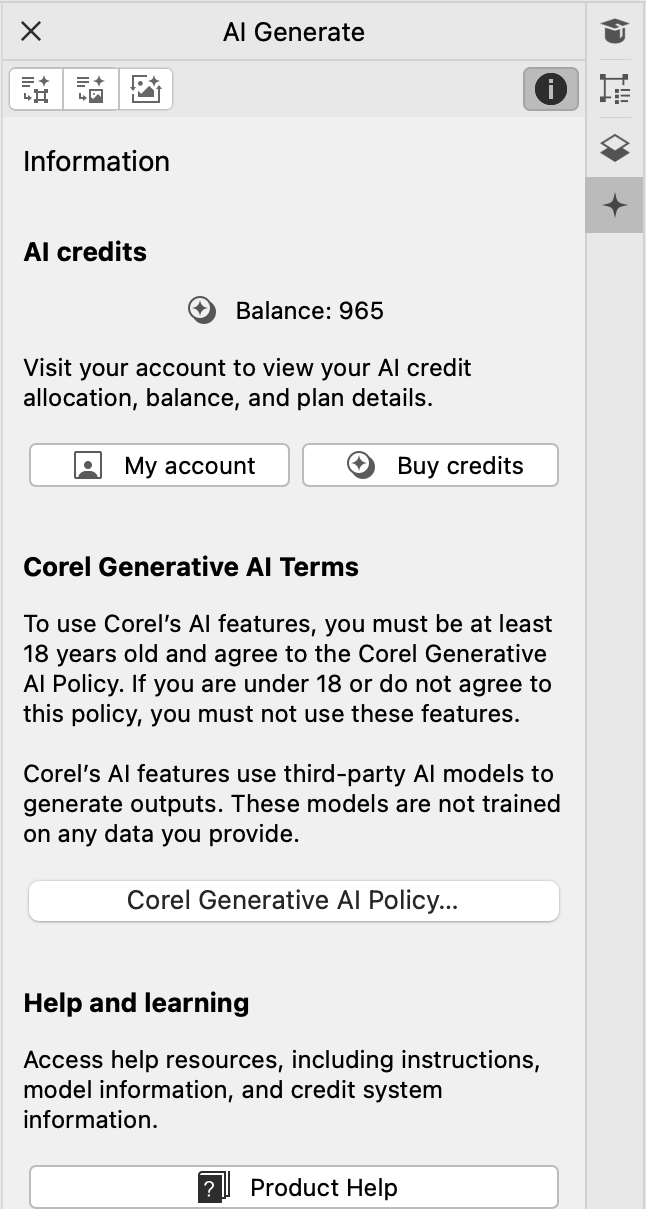
In addition to these workflow tabs, the AI Generate inspector also features an Information tab, which provides a central place to manage and access AI-related resources. It includes sections for AI credits, where you can view your balance, purchase credits, and access your account; Corel Generative AI terms, which link to the Corel Generative AI Policy and describe the conditions under which Generative AI features are available; and Help and learning, offering guidance on generating AI images.
Use the Information tab to find helpful resources in one place.
You can collapse sections of the AI Generate inspector if you don’t need all options at once. For example, if you have already selected a style preset and won’t change it again for a project, you can collapse the Style section to avoid scrolling past it repeatedly.
To access the AI Generate inspector

•
On the toolbar, click
AI Generate 
, and click one of the following options:
•
Create vector graphic — to generate a vector graphic using a text prompt, optionally guided by reference content
•
Create image — to generate a bitmap using a text prompt, optionally guided by reference content
•
Remix image — to modify a vector graphic or bitmap using a text prompt

When you select content in the document, and choose Object  AI Generate or click AI Generate on the toolbar, you can open the AI Generate inspector by selecting one of the following options:
•
Create Vector Graphic Guided by Selection — to create a new vector graphic from a text prompt, using the selected content as guidance
•
Create Image Guided by Selection — to create a new bitmap from a text prompt, using the selected content as guidance
•
Remix Selection — to modify the selected vector graphic or bitmap using a text prompt
The selected content is automatically added as the reference or source when the inspector opens.

You can also access the AI Generate inspector by clicking Object AI Generate and selecting an option.
You can also access the AI Generate inspector by right-clicking in the document window, selecting AI Generate, and then choosing an option.
To learn about AI credits, legal notices, and help resources, click Information  .
.
To collapse and expand a section
•
Click the arrow button

.