Adjust shape detail and structure
Each trace profile is designed to produce a suitable vector result for your source image. You can further customize the result by adjusting how much detail is preserved, how objects are organized, and how overlapping or adjacent shapes are handled.
Fine-tune the appearance of the traced result by adjusting the amount of detail, the number of nodes used to define shapes, and the smoothness of curves.
A lower detail level creates simpler shapes with fewer colors and objects. A higher detail level retains more features and color variations from the source image, but may produce a result with more objects and nodes. Use a lower value for simple logos or artwork where small features are less important. Use a higher value for illustrations and images where fine details contribute to the overall appearance.
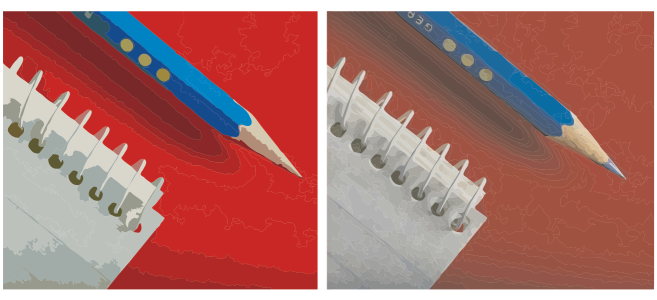
Outline tracing with a low detail value (left); outline tracing with a high detail value (right)
A lower node density uses fewer points to define curves, resulting in smoother paths. A higher node density adds more points, allowing curves to follow the source image more closely but increasing the complexity of the vector result. Use a lower node density when you want fewer editing points. Use a higher node density when the source image contains irregular edges or fine shape variations that need to be captured.
A lower curvature value creates sharper turns and more angular shapes. A higher curvature creates smoother, more continuous shapes. Use a lower value if you want to create sharp edges, defined corners, or geometric shapes. Use a higher value if you want smoother, flowing shapes.
Control how vector shapes are organized in the traced result. By default, hidden areas of overlapping shapes are removed to reduce unnecessary objects. You can choose to keep the underlying shapes when you need separate, complete objects for workflows, such as vinyl cutting or screen printing. To further reduce the number of objects, you can merge adjacent shapes of the same color.
By default, objects are grouped based on color, structure, and relationships, creating a hierarchy of nested groups that helps you navigate and manage complex traced results. If needed, you can choose a flat structure where all objects remain at the same level.
To adjust shape detail

To adjust shape structure