Describe what you want to create
Crafting a clear and detailed prompt helps the AI generate graphics that match your vision. The same principles apply whether you are generating a vector graphic or bitmap: describe the main subject, provide relevant context, and add only the details that matter most to the result.
Begin with a focused description of the main subject or theme. Include relevant details, such as objects, people, actions, or settings. For example, a prompt like "antique Roman mosaic" sets the general theme but leaves much open to interpretation. Adding clarity — like "a butterfly resting on an antique Roman mosaic with a floral pattern" — guides the system toward a specific outcome, making it clear what type of artifact and imagery you want.
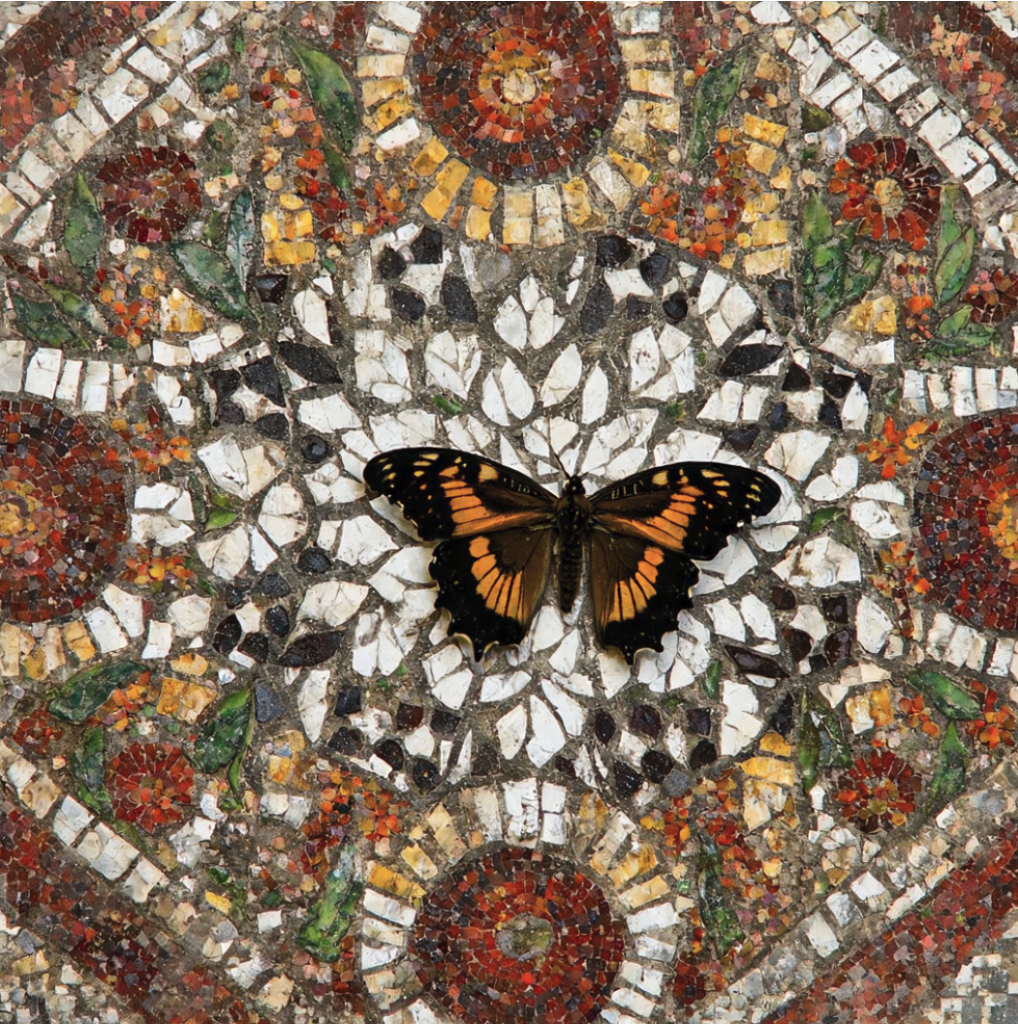
In this example, the image was generated from the following base prompt: "A butterfly resting on an antique Roman mosaic with a floral pattern."
Describe the setting, background, or environment, and include relevant details. For example, provide context by specifying the broader scene: "Set on the floor of an ancient Roman villa." Adding specifics about materials, textures, and colors — like "made of small stone tesserae in warm reds, ochres, and blacks" — transforms the prompt from a simple object description into a complete visual setting.
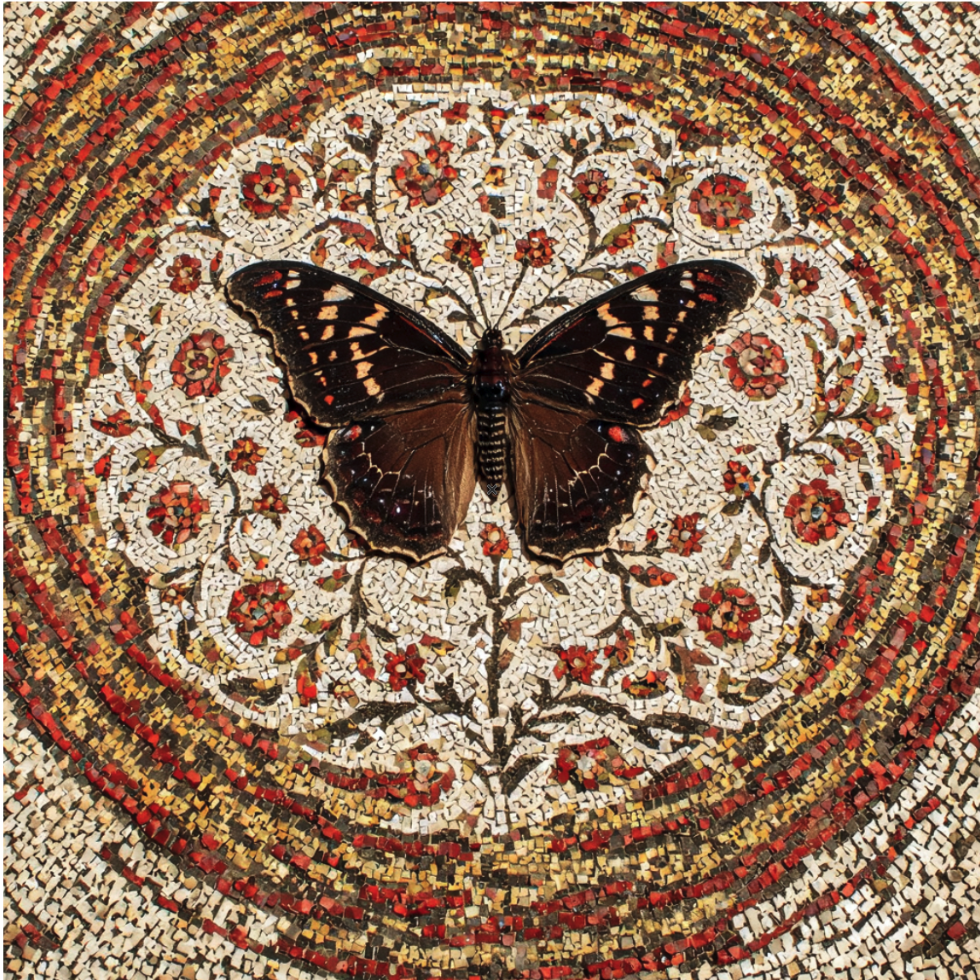
In this example, "made of small stone tesserae in warm reds, ochres, and blacks" was added to the base prompt.
Include lighting and shadow cues when relevant. This is especially useful for bitmaps, where lighting and atmosphere strongly affect realism and mood. For example, clarify where the light comes from to control shadows and highlights: "Light from the top-right corner casts the butterfly’s shadow onto the mosaic."
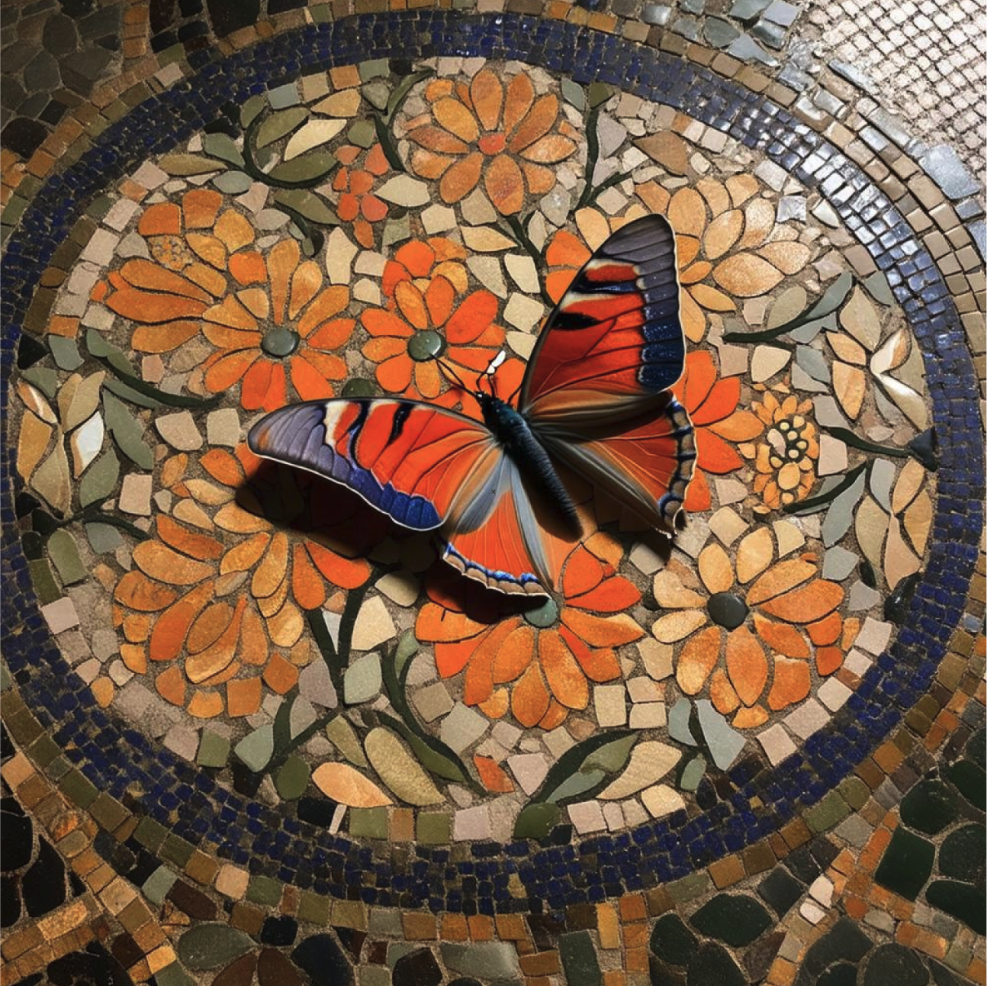
In this example, "Light from the top-right corner casts the butterfly’s shadow onto the mosaic" was added to the base prompt.
Specify style or aesthetic treatment. Terms like "authentic reconstruction", "modern interpretation", "flat illustration", "minimalist", "geometric," or "hand-drawn" influence line quality, shape language, and level of detail.
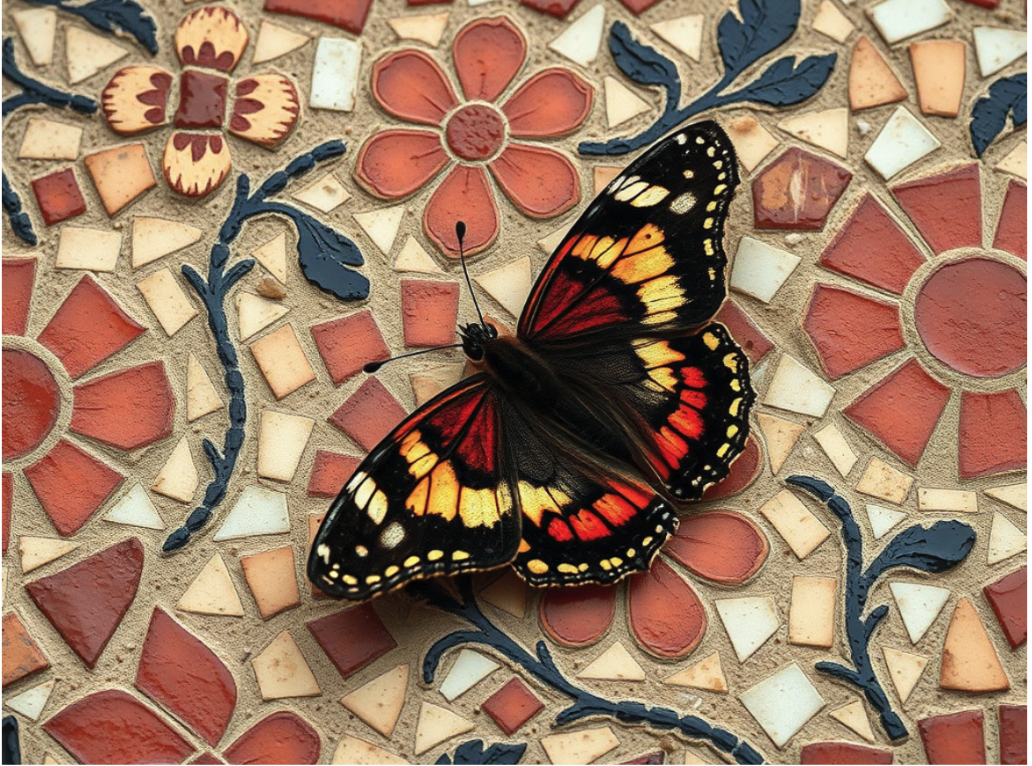
In this example, "interpreted in a modern style" was added to the base prompt.
Mood shapes everything from lighting and contrast to the emotional tone of the scene — whether calm, dramatic, nostalgic, vibrant, or mysterious. For example, "soft, low light with long shadows, creating a mysterious feel" evokes an atmosphere that is quiet, moody, or slightly suspenseful.
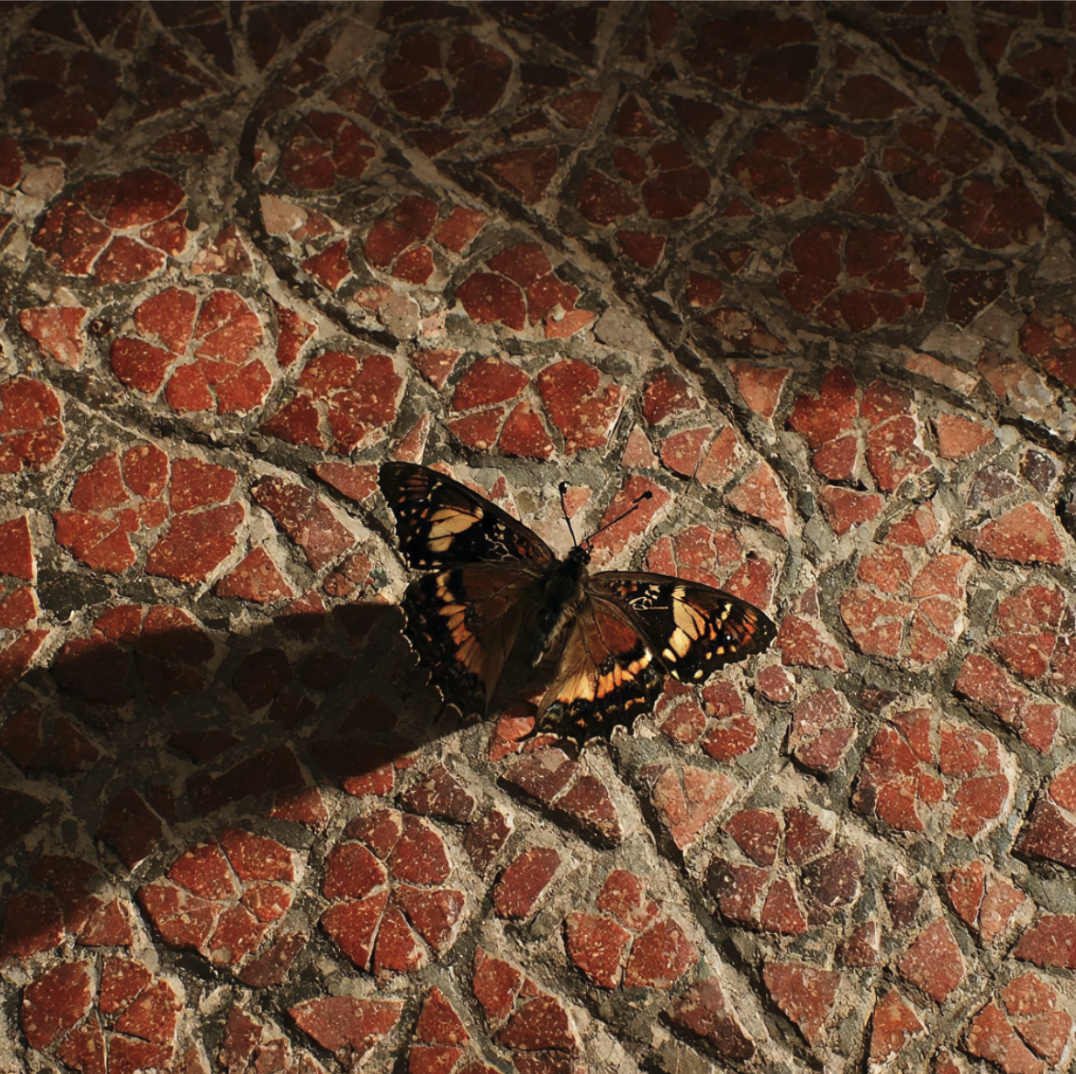
In this example, "soft, low light with long shadows, creating a mysterious feel" was added to the base prompt.
Focus on what makes the result clean, editable, and scalable:
For example, a well-structured prompt for a vector graphic could be:
A butterfly resting on an antique Roman mosaic with a floral pattern, created as a detailed vector illustration with clean outlines, geometric shapes, and a warm red, ochre, and black color palette.

Vector prompt example: Focuses on clean outlines, simplified forms, flat colors, and editability.
Focus on what creates richness, realism, or atmosphere:
For example, a well-structured prompt for a bitmap could be:
A butterfly resting on an antique Roman mosaic with a floral pattern; the mosaic is made of small stone tesserae in warm reds, ochres, and blacks. Rendered in authentic Roman style, with soft, low light and long shadows, creating a mysterious feel.
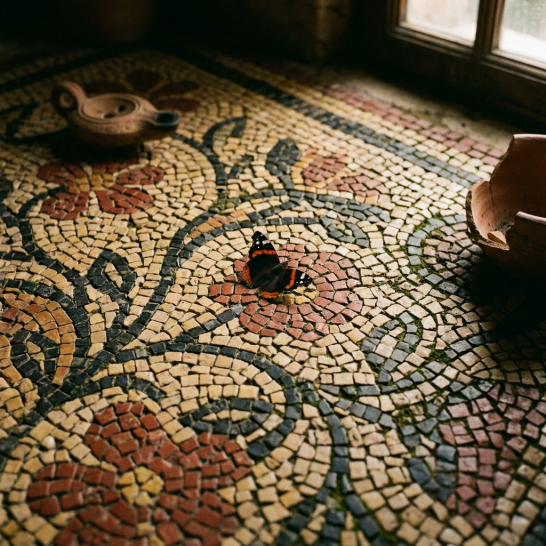
Bitmap prompt example: Focuses on texture, lighting, shadow, depth, and atmosphere.
Balance detail with brevity. Focus on what matters most. Use clear, simple language to help the AI interpret your prompt correctly. Rather than one long description, divide your instructions into distinct parts. A well-structured prompt could be:
To type a prompt


The prompt must be at least three characters.
When using the Nano Banana, short, concise text prompts generally produce better results. For Stable Diffusion 3.5 Medium, Stable Diffusion 3.5 Large, or Flux Schnell, richer and more descriptive text prompts work best.
To clear a prompt
 .
.