Manage image generation
Based on your product or license type, your account includes a set number of credits. Each graphic you generate uses some of those credits, so creating many graphics at once can quickly deplete your balance. Reviewing the cost per graphic for each model and your remaining credits helps you plan your variations and make the most of your credit allotment. For more information about credit usage and allocation, see Understand credit usage.
To view the cost per graphic

The cost per graphic appears below the model name and description.
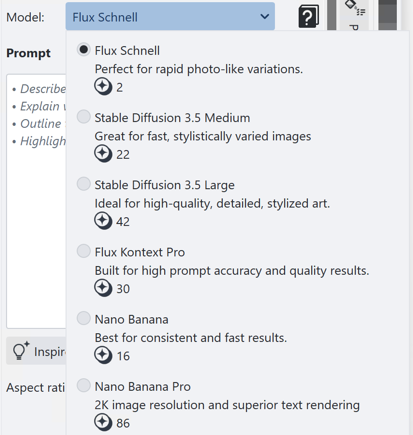

On the Create image and Remix image tabs, the cost per image, as well as the total cost for the selected number of images, and your remaining credits appear next to the Images list box.
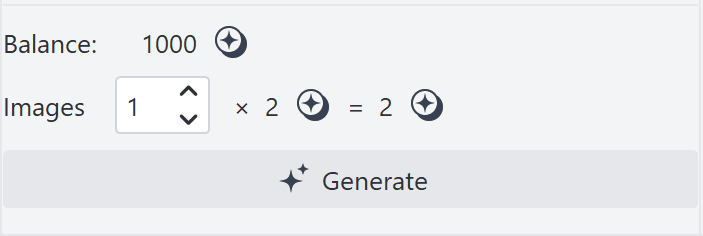
In this example, the cost per image is 2 credits, and generating one image results in a total cost of 2 credits. The current balance is 1000 credits before generation.
To specify how many images to generate