Adjust color output
You can customize the color output of the traced result by choosing a color mode, controlling the number of colors, organizing the color palette, and merging colors.
When the source bitmap is traced, the application generates a color palette for the traced result. The color palette uses the color mode of the source bitmap (for example, RGB or CMYK). The number of colors on the color palette is determined by the number of colors in the source bitmap and the selected preset style.
You can change the color mode of the traced result, and you can reduce the number of colors in the traced result.
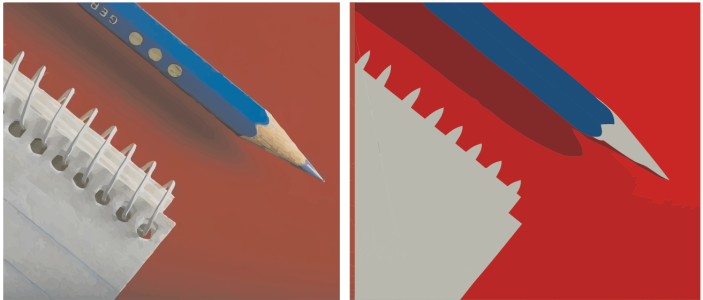
Traced graphic that contains 152 colors (left); traced graphic that contains 5 colors (right)
To edit the color palette more easily, you can sort colors by similarity or frequency. Sorting by similarity groups colors based on hue, then arranges colors within each hue group based on lightness and saturation. Colors with similar hues appear close to each other on the color palette, while colors with different hues appear farther apart. Grayscale colors, as well as colors that appear close to grayscale, are grouped separately and placed last in the color palette. Sorting by frequency places the most frequently used colors at the top of the color palette, followed by colors that appear less often.
You can select a color by clicking it on the color palette of the traced result or by clicking the color in the preview window. You can also select multiple colors.
When editing a color, you can choose a color from a color model that is different from that of other colors on the palette. For example, if you are editing a color in an RGB traced result, you can change the color to a spot color, creating a mixed color palette. This feature is useful when you are preparing the traced result for commercial printing.
With the Outline Trace method, you can merge two or more colors to simplify the color palette. You can either create a new color by averaging the selected colors or replace them with the first selected color.
When available, AI-powered background removal (Remove image background  ) provides one-click background removal by automatically detecting the subject and removing the background. When it is unavailable or disabled, you can use the background color removal feature instead. It removes background colors from images with simple, uniform-color backgrounds and can also remove objects matching a selected color from the traced result.
Exclude colors from the traced result
You can remove selected colors from the source image before tracing. The application makes the matching areas transparent, so they are excluded from the traced result, and no corresponding vector shapes are created.
If you want the traced result to contain only colors from a specific color palette, you can open that color palette in PowerTRACE. The colors of the traced result are replaced by their closest match on the color palette.
After you edit the color palette of the traced graphic, you can save it to create a custom color palette for later use.
To adjust color

 , and click a color in the preview window. A marquee appears around the selected color. To select an additional color, hold down
 .
 , find the folder where the palette is stored, and click a filename.
 . In the dialog box, type a name in the box.

The number of colors cannot be reduced, and colors cannot be merged, when you use the Centerline Trace method.

To increase the number of colors in a traced result, you need to change the trace profile or increase the amount of detail. For information about trace profiles, see Choose a trace type and profile. For information about shape detail, see Adjust shape detail and structure.