Remove image background
You can remove the background from an image, object, or editable area with a single click. The application automatically detects the subject letting you isolate subjects in portraits or extract objects for design and creative editing without any manual steps such as masking or deleting areas.

Removing the background from a selected object
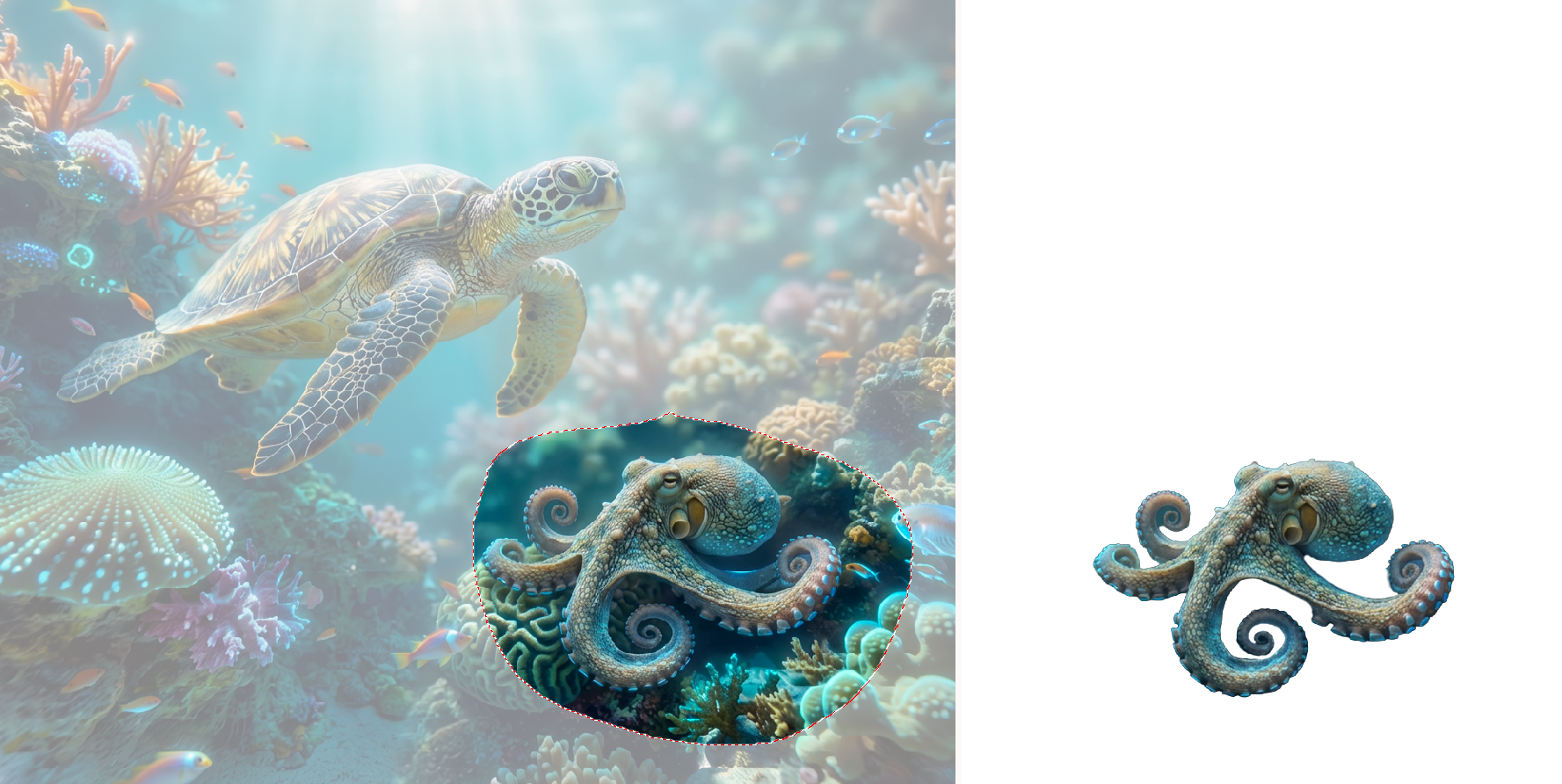
Removing the background from an editable area
To remove the background from an image


You can also remove the background from a selected object by right-clicking the object, and clicking Remove Background.
To remove the background from the background layer in documents with multiple objects, you can also right-click the background layer in the Objects docker, and click Remove Background.
Other tools and features, including the Cutout Lab, the Smart Selection Mask tool  , and the Eraser tool
  , and various mask tools, also allow you to isolate and remove backgrounds from photos but involve multiple manual steps, such as masking or deleting areas, whereas the Remove Background command automatically detects the subject and removes the background with a single click.