Explore the PowerTRACE dialog box
The PowerTRACE dialog box contains controls that help you preview and edit traced results.
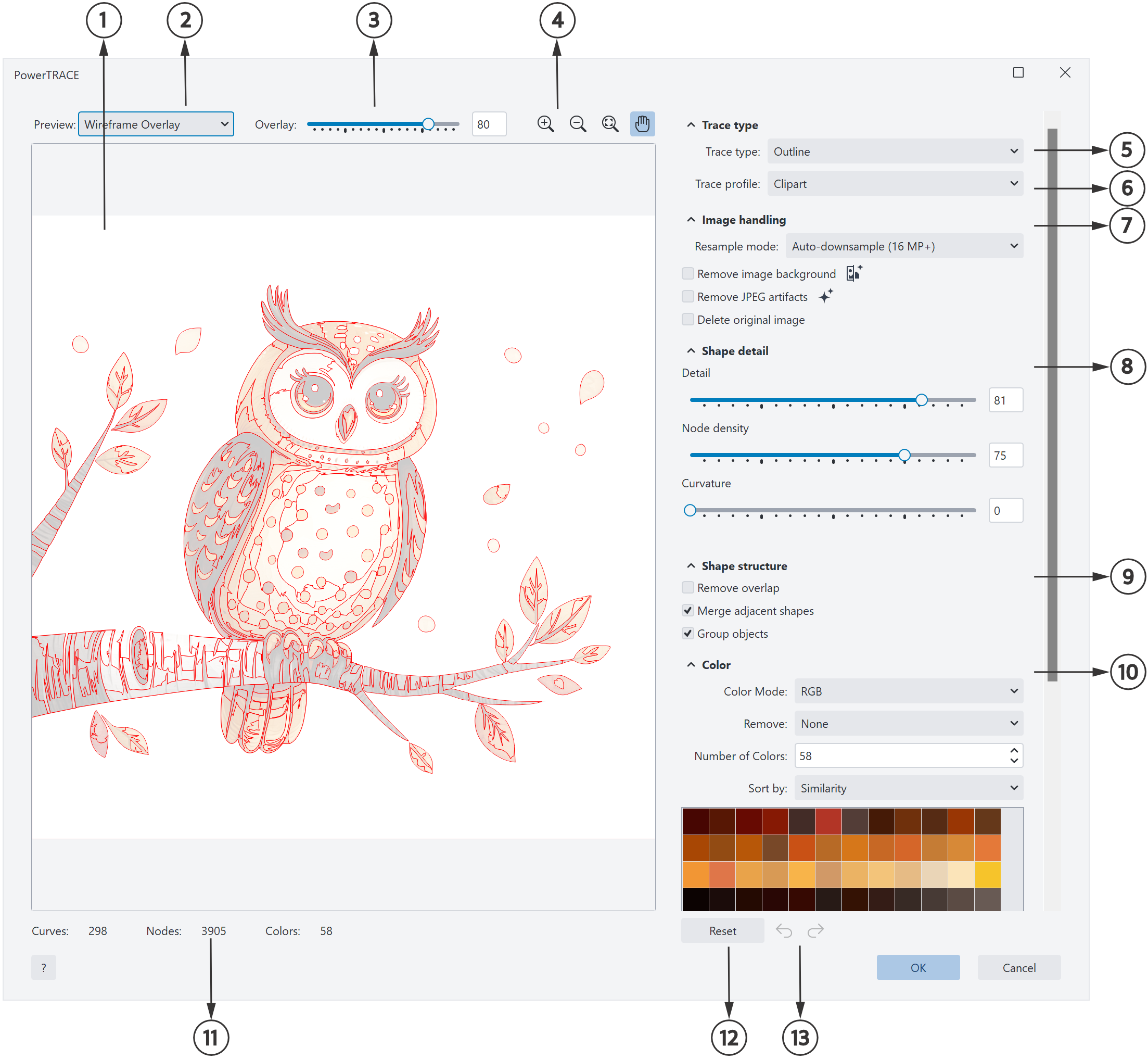
Circled numbers correspond to the numbers in the following table, which describes the main controls of PowerTRACE.
|
Choose whether to trace the image as filled shapes (Outline) or lines (Centerline). For more information, see Choose a trace type and profile.
|
|
|
Select a trace profile optimized for your source image. Each profile applies a predefined set of tracing settings. For more information, see Choose a trace type and profile.
|
|
|
Optimize the source image for tracing and manage it afterward. For more information, see Prepare the image.
|
|
|
Control shape detail, node density, and curvature in the traced result. For more information, see Adjust shape detail and structure.
|
|
|
Control how shapes are organized in the traced result. For more information, see Adjust shape detail and structure.
|
|
|
Control color mode, color count, sorting, merging, and editing in the traced result. For more information, see Adjust color output.
|
|
|
Undo and redo the last action you performed. For more information, see Undo, redo, and repeat trace.
|
By default, the PowerTRACE dialog box displays both the source bitmap and the traced result, so you can compare them as you adjust the tracing options. You can also preview the traced result in a single-pane window, or display a wireframe (outline) overlay over the source bitmap.
You can zoom in and out to get a better view of the graphic, and you can pan to view areas that fall outside the preview window.
To preview traced results

 or
or  tool, and click in the preview window.
 tool.
tool. , and drag the graphic.
You can resize the PowerTRACE dialog box to make more controls visible or reduce scrolling. Drag an edge of the dialog box to make it larger or smaller.